How to Choose a Tool for Per-Recipient Client Emails

One Template, a Different Email for Every Client
Most email tools were designed around one idea: write a message once and send the same text to many people. That works for a general announcement. It doesn't work for the emails a service business sends every month, where each client needs to see something that belongs only to them: the amount they owe, their due date, their account number, their own invoice attached.
Dynamic content in this sense isn't about swapping a banner depending on who opens the email. It's about building hundreds of individual emails from your own data, accurately, on schedule, without copying and pasting. This guide lists what to check when you choose a tool for payment reminders, statements, fee and rent notices, and account updates to existing clients.
The Main Types of Tools You'll Come Across
- Mail merge in your office software or mailbox. Free or cheap and familiar, but usually manual every time: you run it from your own computer, attachments per recipient are awkward, and there's no schedule.
- Developer email APIs. Very flexible and reliable, but you need a programmer to build and maintain the templates, data import and scheduling.
- Reminders built into accounting, invoicing or property software. Convenient if they cover your case, but often limited to one kind of email and one fixed layout.
- Platforms built for recurring, per-recipient emails. Designed for non-technical office staff: you upload client data, write a template with merge tags and set a schedule.
None of these is wrong in general. The right choice depends on how many clients you have, how often you send, and who in your office will run it. The checklist below helps you compare any of them.
1. A Data Model That Fits Your Clients
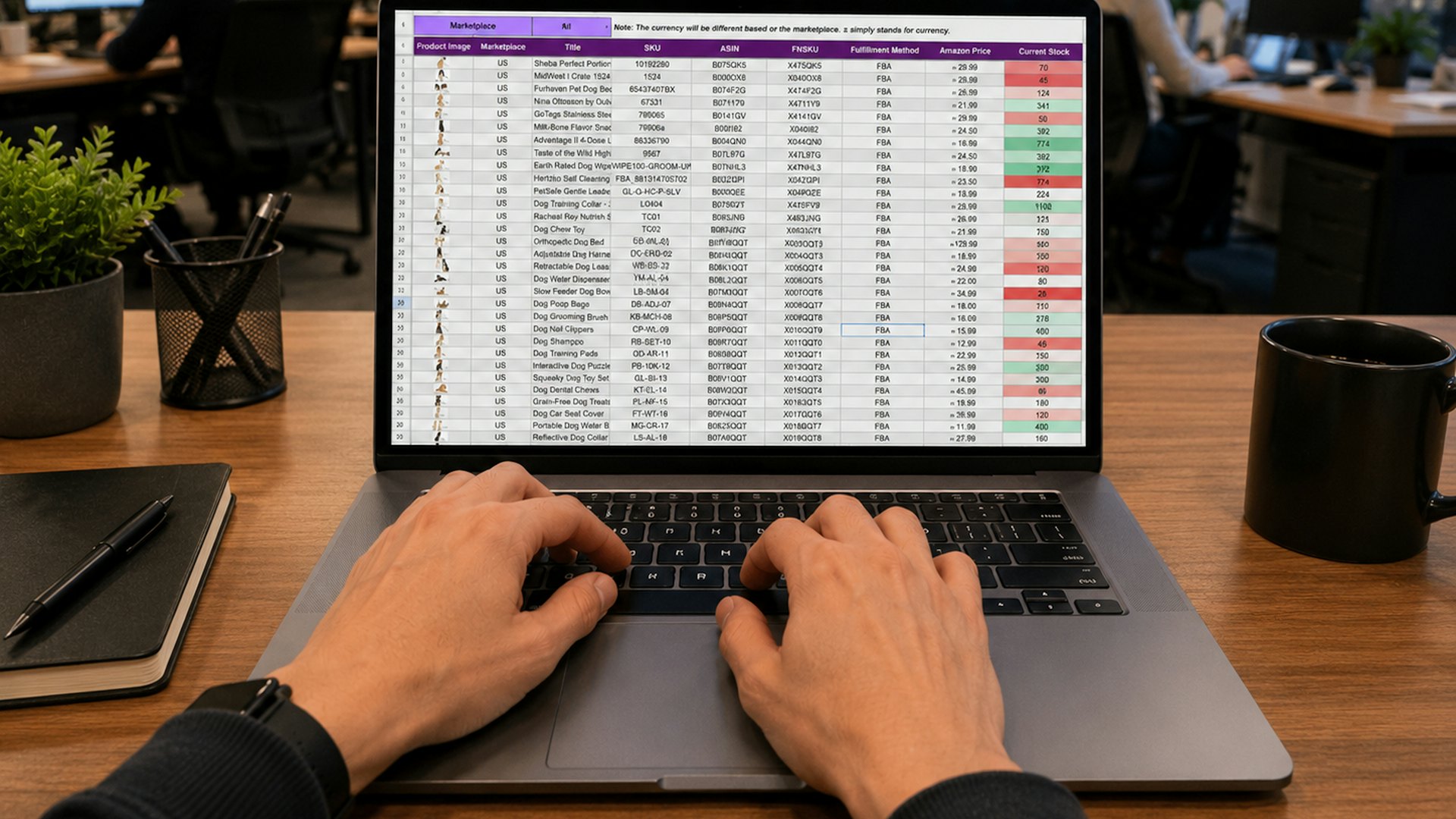
Start with your data, not the email. Can you define your own fields for each group of recipients, and do they have proper types? Look for at least text, whole numbers, decimal numbers and dates, so that amounts and deadlines are stored as values, not loose text. Check how data gets in: a CSV import that validates each row and reports errors is worth more than a pretty editor, because a typo in an amount should stop at import, not reach a client. Re-importing should update existing clients (matched by email address) instead of creating duplicates.
2. Merge Tags in the Subject and the Body
Every field should be usable anywhere: in the subject (Your statement for {{period}}), in the text and in the payment details. Simple calculations help too, for example adding a meals fee to a base fee or applying a tax rate, with rounding and basic text filters. Ask what happens when a value is missing. Some tools fall back to a default, others print the raw tag or an empty space. Whatever the behaviour, you need to know it before the first run.
3. Attachments That Belong to One Recipient
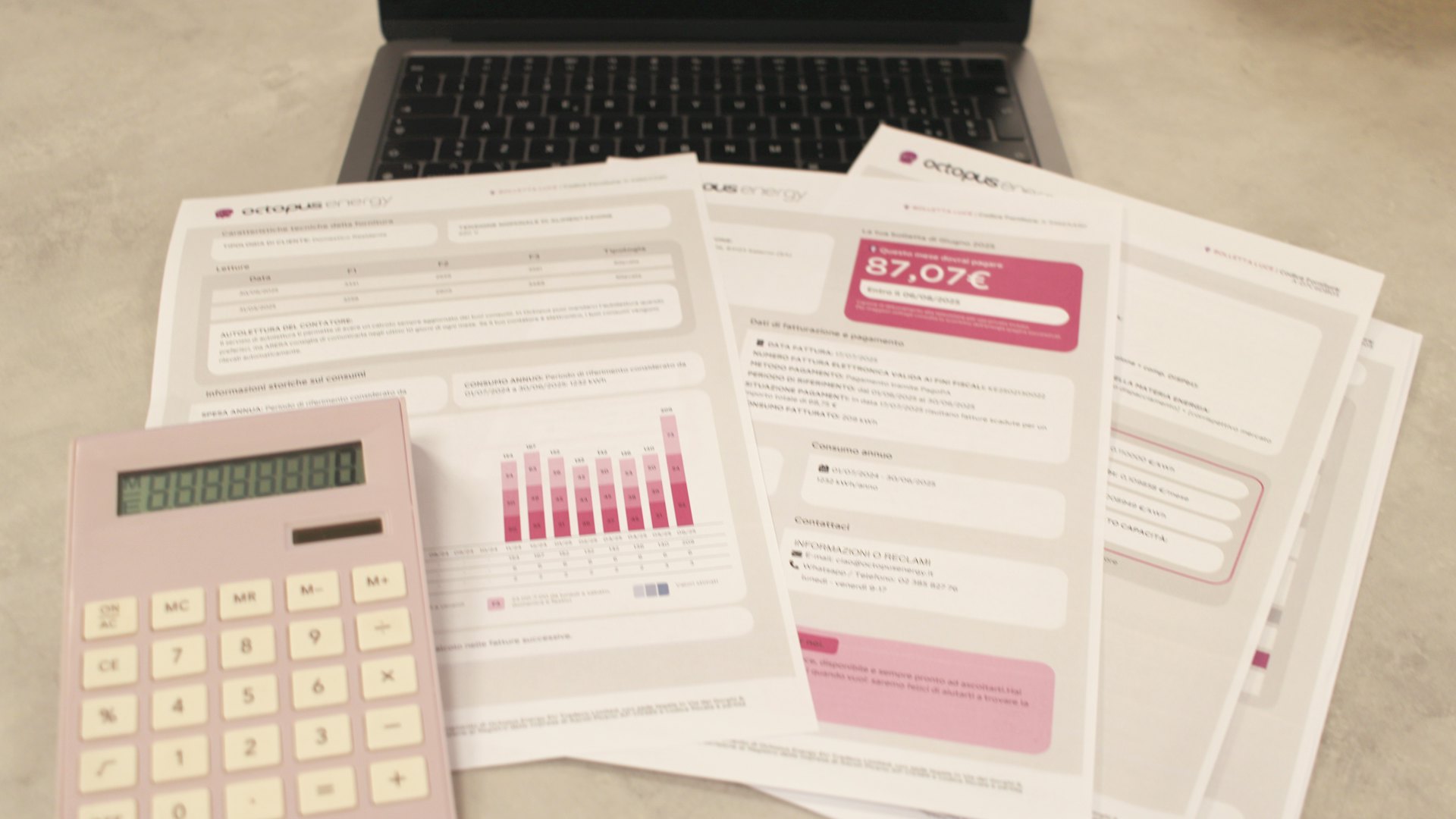
Many client emails are really a cover note for a document: an invoice, a statement, an attendance report. The tool should let you attach a different file to each recipient's email, not the same file to everyone. Check how files are uploaded and whether you can see which client has which file before sending.
4. Recurring Schedules That Match Your Calendar
Your emails follow the business calendar: rent on the 1st, tax notices on the 20th, tuition before the month starts. Look for daily, weekly and monthly schedules with a set time and time zone, and make sure each run uses the current data at the moment of sending, not a copy frozen when the schedule was created. Useful extras: a history of past runs, and the ability to pause and resume a schedule when something changes.
5. A Preview of What Each Client Will See
Before anything goes out, you should be able to see the email exactly as a specific recipient will receive it, with their numbers filled in. Check several clients, including those with unusually long names or large amounts. A preview step is the cheapest insurance against sending one client another client's balance.
6. Sending From Your Own Domain
Client emails must come from your address, with your name, signed with your domain. Check whether the tool helps you add the required DNS records, whether it supports DKIM for your domain, and whether it warms up a new domain gradually. Before you switch, run your domain through a domain health check to see where SPF, DKIM and DMARC stand today.
7. Safeguards That Protect Your Reputation
Even expected emails need the basics: a one-click unsubscribe link, automatic handling of bounces and spam complaints, and suppression of addresses that no longer work. A platform that pauses accounts with unusually high bounce or complaint rates protects your domain from sharing infrastructure with careless senders.
8. Ease of Use for the Person Who Will Run It
In most small offices the person sending reminders is an office manager or accountant, not a developer. Ask yourself whether they can import data, edit a template and check a run without help. A clear template editor matters more than advanced features nobody will use.
9. Pricing That Matches Your Client Base
For client emails, your list is roughly the number of clients you serve, and it grows slowly. Pricing by number of contacts is predictable in this situation. Check what's included at each level and whether there is a trial so you can test a real monthly run first.
How MailerBit Fits This Checklist
MailerBit is built for exactly this kind of email. Custom fields come in five types (text, whole number, decimal, date and file), and a file field sends each recipient their own attachment. CSV import validates every row and can update existing records by email. Merge tags work in the subject and body, with one arithmetic operation per tag, such as {{base_fee + meals_cost}}, and filters like round(2). Recurring sends run daily, weekly or monthly with fresh data each time, and every run is kept in the send history. You send from your own verified domain (DKIM and Return-Path), new domains are warmed up automatically, every email has a one-click unsubscribe link, and bounces and complaints are handled for you. Plans are priced by number of contacts (250, 1,000 or 3,000); see the pricing page for details.
For a hands-on walkthrough of fields and templates, read one template, hundreds of individual emails.
Your Shortlist Questions
- Can I define typed fields for my own data and import them from a CSV with validation?
- Can I use those fields in the subject, body and simple calculations?
- Can each recipient get their own attachment?
- Does a recurring schedule pick up fresh data on every run?
- Can I preview the email for a specific recipient before sending?
- Will emails come from my own authenticated domain?
- Are unsubscribes, bounces and complaints handled automatically?
- Can the person in my office who'll use it run it without help?
Want to see how your own monthly reminders would look? Start your free trial of MailerBit and set up your first recurring send with your real client data.