How to Email Invoices to Many Clients at Once
Thirty invoices a month is a chore. Three hundred is a part-time job.
The invoices are issued. They sit in a folder as PDFs, one per client. Now someone has to open the mail program, find the right address, attach the right file, type the amount and the due date, check the account number and press send. At thirty clients that's an afternoon. At three hundred it's two days of careful copy-pasting, and somewhere around invoice 140 a file goes to the wrong person.
This guide is for small businesses that issue anywhere from 30 to 300 invoices a month and want every client to get their own invoice PDF and payment details by email, without sending them one by one. We'll cover what a good invoice email contains, how to name and match the files, how to keep invoices out of spam, a template you can copy, a checklist to run before every send, and what to do once the invoices are out.
What a good invoice email contains
The invoice PDF holds all the legal details. The email has a different job: to tell the client in five seconds what they owe, by when and where to pay, so they can act without even opening the attachment. A good invoice email has:
- A subject line with the invoice number and the amount. Invoice 2026/12/015 from Smith & Co: $480.00 due 20 Dec can be found in an inbox search a month later. Your invoice can't.
- The amount, with currency, matching the PDF to the cent.
- The due date as a real date, not “14 days”.
- The account number the client should pay into, written out in full.
- The transfer title, usually the invoice number, so you can match the payment when it arrives.
- The PDF itself, attached, with a file name that makes sense to the client.
- A contact: a name, a phone number and a reply address someone actually reads. Invoice questions are cheaper to solve before the due date than after it.
Everything on that list except the PDF is plain data you already have in your invoicing software: number, amount, date, account. That's what makes bulk sending possible: the text stays the same, only the data changes.
A copy-paste invoice email template
Write the email once, with merge tags in place of every client-specific value. When it goes out, each tag is replaced with that client's own data. The field names below are examples; use whatever names match your export.
Subject: Invoice {{invoice_number}} from {{company_name}}: {{amount}} due {{due_date}}
Hello {{first_name}},
Please find attached invoice {{invoice_number}} for {{service_period}}.
- Amount: {{amount}}
- Due date: {{due_date}}
- Bank account: {{bank_account}}
- Transfer title: {{invoice_number}}
The invoice is attached as a PDF. If anything on it needs correcting, just reply to this email or call me on {{contact_phone}}.
Thank you,
{{contact_name}}
{{company_name}}
Notice what isn't there: no “Dear customer”, no marketing banner, no “please see attachment” without any figures. A client who reads only the first three lines on a phone already knows what to do.
Name your PDF files the same way every time
A consistent file name helps twice: the client can find the invoice in their downloads, and you can tell at a glance which file belongs to whom. Pick one pattern and never deviate from it:
Invoice_2026-12_015_SmithCo.pdf: document type, period, number, client.INV-2026-12-015_C0042.pdf: number plus your internal client ID.
A few rules that save trouble later:
- Put a unique identifier in the name. A client ID or tax number beats a company name: there are always two clients called “Johnson”.
- Avoid spaces and special characters. Some mail clients and phones mangle them. Underscores and hyphens are safe.
- Don't send
document(3).pdf. It looks careless, and the client can't tell it apart from the last one. - Keep files small. A one-page invoice PDF is usually well under 1 MB. If yours are several MB, your invoicing software is probably embedding images or fonts it doesn't need to.
Match every file to the right client
Sending a client someone else's invoice is the one mistake you can't take back. It shows another company's name, amounts and often their address, which makes it both embarrassing and a data protection incident. Matching deserves more care than any other step.
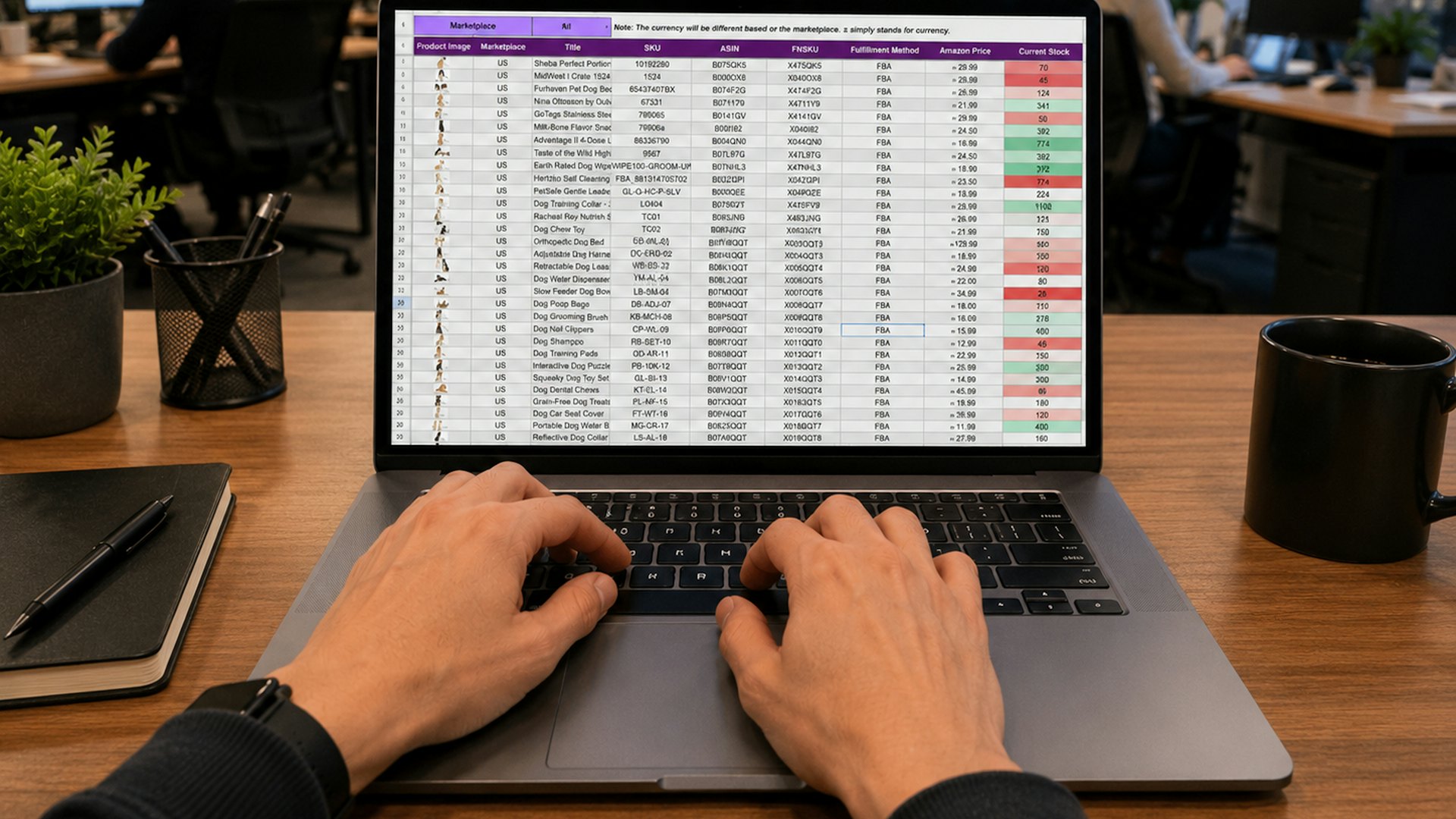
- Match on an ID, never on a name alone. Keep one sheet with the client ID, email address, invoice number, amount and file name in the same row. If the file name contains the ID, you can check every row by eye.
- Check that the numbers line up. The amount in your sheet should be the amount in the PDF. If they differ, the file is from a different client or an older version.
- Watch for clients with several invoices. If one client gets two invoices this month, decide in advance whether they get one email with both or two separate emails, and make sure the data says the same.
Send from your own domain, so invoices don't land in spam
An invoice in the spam folder is an invoice that will be paid late, if at all. Mail providers are suspicious of messages that arrive in batches with PDF attachments, which is exactly what bulk invoicing looks like. They decide based on whether you can prove the email is really from you.
- Send from your own domain, for example
invoices@yourfirm.com, not from a free mailbox and not from a shared address of some platform. - Set up SPF and DKIM for every service that sends on your behalf, and publish a DMARC policy. Gmail, Yahoo and Microsoft now expect this from anyone sending in volume.
- Don't use
noreply@. Replies to invoices are useful: “we've changed our address”, “please invoice our parent company”. And a real reply address looks more trustworthy to filters and people alike. - Keep the email simple. A short text with the key figures and one attachment gets through better than a heavy design with large images.
Our guide to keeping business emails out of the spam folder walks through the setup step by step.
E-invoicing mandates: email still matters
Several EU countries are moving to mandatory e-invoicing, where invoices are issued in a structured format through a government or certified system. Poland's KSeF is one example, and Spain is rolling out mandatory B2B e-invoicing as well. The dates, thresholds and exceptions differ from country to country and keep changing, so check your national rules rather than relying on a blog post.
What doesn't change is what your client needs to know. A structured file in a government system tells their accounting department that an invoice exists. It doesn't tell the person who pays the bills what to pay, by when and where. A clear email with the amount, due date, account number and a readable PDF still does that job, and you'll still have clients who sit outside the mandate: consumers, foreign buyers, smaller businesses. Payment reminders don't go through e-invoicing systems either.
A checklist to run before every send
Bulk sending is fast in both directions: it gets 300 correct invoices out in minutes, or 300 wrong ones. Five minutes of checking is cheap insurance:
- Send a test to yourself and read it on your phone. Is the subject line readable? Do the amounts show with the right currency and decimals? Does the attachment open?
- Spot-check three clients. Pick the first, the last and one from the middle of the list. For each one, compare the email's amount, due date and invoice number with the PDF that's attached to it.
- Look for empty values. A missing account number or due date produces an email that says “Due date:” and nothing else. Sort your sheet by each column and look for blanks before importing it.
- Never mix clients' data. One email per client, with that client's own figures and file. No shared CC, no BCC lists, no “please find all invoices attached”.
- Count. Number of invoices issued = number of recipients = number of files. If the three numbers differ, find out why before you press send.
After the send: reminders and marking invoices paid
Sending the invoice is half the job. The other half is knowing who has paid and nudging those who haven't, without bothering the ones who already did. A simple routine works: a friendly reminder a few days before the due date, a neutral one on the day, and a firmer one a week later, each with the same amount, account number and invoice number as the original email. When a payment arrives, mark the invoice as paid so that client drops out of the reminders.
We cover the whole routine, from payment terms to the wording of a final notice, in our guide on how to reduce late payments in a small business.
How MailerBit helps
MailerBit is built for exactly this: emails a business sends its own clients every month, each with that client's own data, from the business's own domain. It doesn't issue invoices and doesn't connect to KSeF or your invoicing software. You keep issuing invoices the way you do today; MailerBit delivers them, tracks them and follows up.
- Per-client data and files. With custom fields every contact holds its own values, such as invoice number, amount, due date and bank account, imported from a CSV, and each field becomes a merge tag in your template. A file field holds a file for each contact, sent as an attachment with their email. Files are added to each contact individually, so the matching stays under your control.
- Attachments that fit invoices. Attachments up to 10 MB per email on Micro and up to 25 MB on Growth and Scale, far more than a typical invoice PDF.
- Payment tracking. With payment tracking you can add a payment with its invoice PDF and send the invoice email straight away, or let a recurring send create a payment for every email automatically from the amount and due date fields. Each payment shows whether the invoice email was delivered, opened or bounced.
- Reminders that stop when paid. You mark payments as paid, one at a time or many at once. Optional automatic reminders (Growth and Scale) run up to five steps around the due date and stop as soon as a payment is marked paid. On every plan you can send a reminder by hand.
- Your own domain. Emails go out from your verified domain with DKIM and SPF, with your name in the From field.
Send the invoices, not three hundred emails
Bulk invoice emailing comes down to clean data, consistent files and a careful check before you press send. Get those right once and next month's batch takes minutes instead of days. Start your 7-day free MailerBit trial, or see clients and payments in every state in the interactive demo, no account needed.