Monthly Client Statements by Email for Accounting Offices

The mid-month crunch nobody budgets for
Around the middle of every month, every accounting office runs the same drill. The books are closed, the returns are prepared, and now each client needs to hear, in writing, how much they owe, to whom and by when. VAT or sales tax for the period. The income tax payment. Payroll taxes for their staff. Your own fee for the month. Three or four amounts, a couple of dates and some account numbers, multiplied by every client on your list.
With 20 clients that is an annoying afternoon. With 150 it is two days of copying a figure from a spreadsheet, pasting it into Outlook, checking the address and starting again. Nobody bills for that time, and it is exactly the kind of repetitive task where a tired person makes a mistake that matters.
Below: how to structure the statement email, send it from the spreadsheet you already export, time it around deadlines, and keep it on the right side of data protection rules.
Why copy-paste in Outlook eventually fails
Manual sending works until the month it doesn't. The failure modes are predictable:
- Wrong row, wrong client. You copy the VAT figure from row 47 while the email is addressed to the client in row 48. The amount looks plausible, so nobody notices until the client pays it.
- Last month's numbers. You reuse last month's email, update three figures and miss the fourth.
- Autocomplete. Outlook suggests "Martin Bakery" when you meant "Martin Builders", and one company's tax liabilities land in another company's inbox.
- The group email shortcut. Someone puts every client in CC instead of BCC and exposes your whole client list.
- No record. When a client says "I never got it", you are searching a personal Sent folder instead of a delivery log.
They share one root cause: a person stitching numbers and addresses together by hand, hundreds of times, under time pressure. And when the data is a client's tax position, sending it to the wrong person is not just embarrassing. Under GDPR it is a personal data breach.
What a good client statement email contains
Clients skim these emails on their phone, often between other things. The statement should answer four questions on the first screen: how much, for what, where to pay and by when. A checklist:
- The period in the subject line, e.g. "Tax payments for September 2026", so the email is easy to find later.
- One line per liability: VAT or sales tax, income tax, payroll taxes, your fee, each with its own amount.
- A total, so a client paying from one account knows the full outflow.
- The right account for each payment, because the tax authority, payroll and your office are usually different payees.
- Deadlines as dates, never "the usual time".
- A named contact at your office.
Here is a sample built with merge tags, placeholders that get replaced with each client's own value when the email is sent:
Subject: {{company_name}}: tax and payroll payments for {{period}}
Hi {{first_name}},
We have closed the books for {{period}}. This is what is due:
- VAT / sales tax: {{vat_due}}, pay by {{vat_deadline}}
- Income tax payment: {{income_tax_due}}, pay by {{tax_deadline}}
- Payroll taxes: {{payroll_due}}, pay by {{payroll_deadline}}
- Our fee for {{period}}: {{fee}}
Total this month: {{total_due}}
Taxes go to {{tax_account}}, our invoice to {{office_account}}. Questions? Reply to this email or call {{bookkeeper_name}} on {{bookkeeper_phone}}.
Calculate total_due in the spreadsheet with a formula over the line-item columns, so it always agrees with them. Lines that don't apply this month show 0, so every client gets the same layout. If a whole group of clients never has a given liability (sole traders without staff have no payroll), give them a separate list with a shorter template.
Sending from a spreadsheet export
Your accounting software already knows every number and can almost certainly export it. Shape that export once so it can feed an email every month:
- One row per client, one column per value. The headers become your field names:
email, first_name, company_name, period, vat_due, vat_deadline, income_tax_due, payroll_due, fee, total_due, tax_account, office_account. - The email column is the key. Use the address the client agreed to receive statements at, not whatever happens to be in the CRM.
- Numbers as plain numbers. Strip currency symbols and thousands separators, and check that the decimal separator matches what your import expects. Reading
1.234,56where1,234.56was meant is a classic source of errors a thousand times too large or too small. - One date format, saved as CSV UTF-8, so dates parse consistently and accented names survive the import.
- Sanity-check before import: row count matches active clients, no blank amounts (use 0), nothing absurd at the top when sorted by amount.
Once the column layout is fixed, every following month is the same four steps: export, re-import, preview, send. If you are new to per-recipient data, the custom fields overview explains how columns turn into merge tags.
Timing: statement first, reminder before the deadline
Tax deadlines don't move, so your sending calendar shouldn't either. A rhythm that works for most offices:
- Statement: three to five business days before the earliest deadline, once your figures are final.
- Reminder: one or two days before the deadline. Short, same amounts, with a line saying "if you have already paid, please ignore this message".
- Your own fee: inside the statement or on its own schedule; see automated payment reminders that get paid.
Keep the day fixed: clients learn to expect it, and you get fewer "did you send the VAT figure?" calls.
{{period}} in the subject line, so a stale import is obvious the moment you preview it.Data protection: treat every statement as personal data
Tax amounts linked to a named person or sole trader are personal data under GDPR. Practical rules:
- A misdirected statement is a breach. You have to assess it, document it and, if it creates a risk for the person concerned, notify your supervisory authority within 72 hours. Preventing wrong-recipient errors is far cheaper than handling them.
- Minimise the content. Amounts, deadlines and payment accounts. No full national ID numbers, no individual employee salaries, no copies of returns pasted into the body.
- One email per client. Never a visible list of recipients.
- Confirm the address in writing during onboarding, especially shared mailboxes like office@.
- Check your processors. Any tool sending email on your behalf processes client data and needs a data processing agreement.
How MailerBit handles the monthly run
MailerBit is built for exactly this kind of email: the same message every month, with different numbers for every recipient.
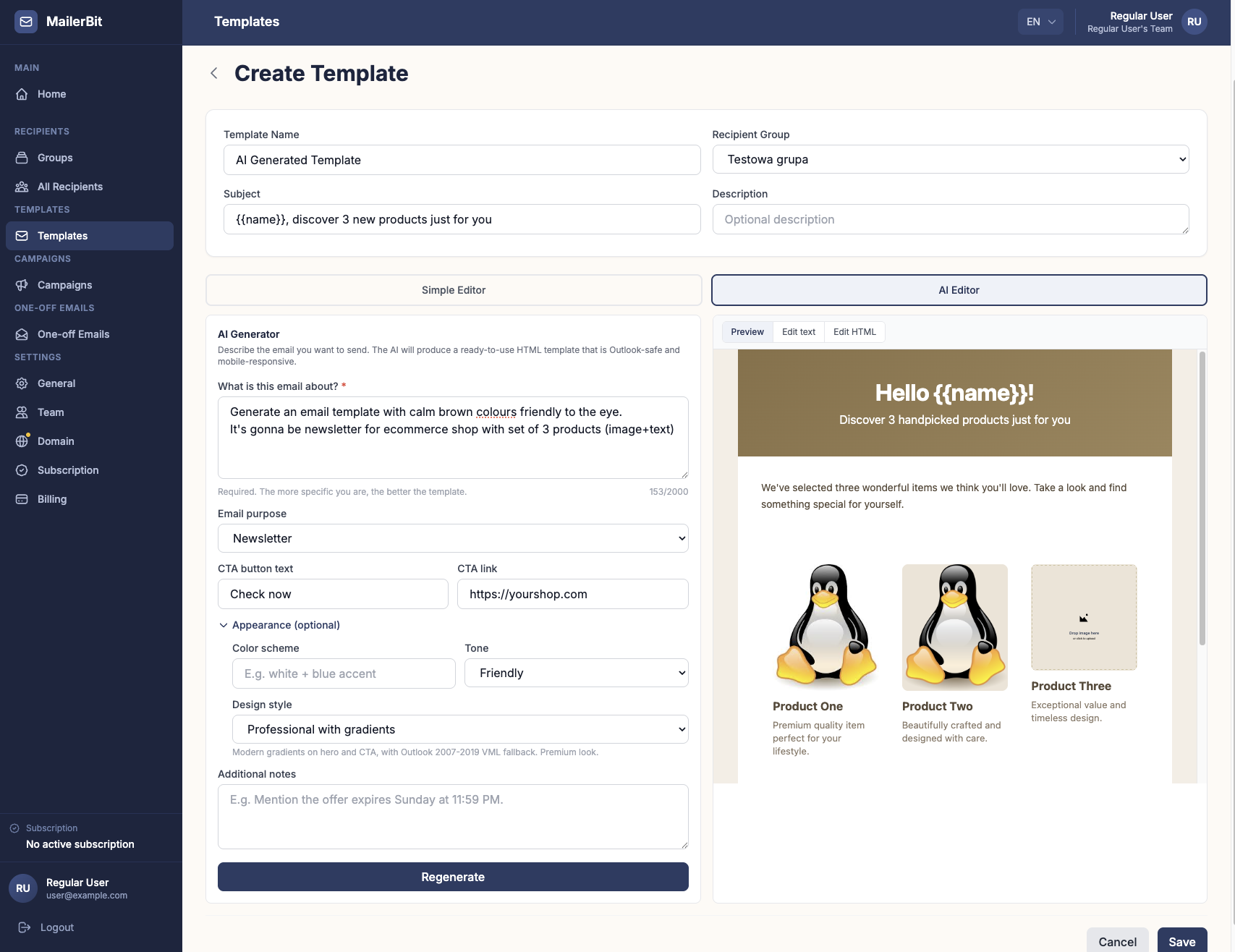
- Import your export. Upload a CSV with your client data and store each value as a custom field: VAT, income tax, payroll, account numbers, deadlines, as many fields as you need. Next month, update the amounts in bulk with a fresh CSV.
- Typed fields: text, whole numbers, decimals, dates and files. Amounts appear exactly as stored, so put the currency symbol in the template; for thousand separators, export the amount as formatted text.
- One template, written once, with merge tags like
{{vat_due}}that turn into each client's own values at send time. - Recurring campaigns on the day of the month you choose, at the hour and in the timezone you set, plus a second recurring campaign for the reminder. Clients added to the list later are included in the next run automatically.
- Preview with real client data before sending, and a report after each run with delivery, opens and errors.
- Sending from your own domain, so clients see your office's address rather than a generic sender.
Every email is generated from that client's own contact data, so there is no copy-paste step where one client's figure can end up in another's message. More on the accounting offices page and in recurring campaigns (Growth and Scale plans).
Make next month the last manual one
Start small: tidy your current export, write one template and preview it for ten clients you know well. If every amount matches, schedule it. Create your MailerBit account and set up next month's client statements before the deadline crunch starts.