DKIM Setup Explained: How It Works and Common Errors

Your emails say they're from you. DKIM is how they prove it.
Someone set up DKIM for your domain a while ago, and everyone assumed it was done. Then a client mentions that your payment reminder landed in spam, or a DMARC report arrives full of dkim=fail, and nobody can say whether that record ever worked.
The good news: DKIM is simple, the record is a single DNS entry, and almost every failure comes from a short list of copy-and-paste mistakes. Here's DKIM in plain language, and how to fix each of them.
What DKIM actually does
DKIM (DomainKeys Identified Mail) is a digital signature on every email you send — think of a wax seal on a letter. It has three parts:
- The private key stays on the sending server and signs each message: a fingerprint of the body and of headers such as From, Subject and Date.
- The public key is published in your domain's DNS, where anyone can read it.
- The selector is a label telling the receiver which public key to fetch. One domain can have several keys — office mail, invoicing tool, client reminders — and selectors keep them apart.
When Gmail or Outlook receives your message, it reads the DKIM-Signature header, takes the signing domain (d=) and selector (s=), fetches the public key from DNS and checks the seal. If it matches, the message was authorised by the domain owner and nobody changed it on the way.
DKIM doesn't list which servers may send for you (that's SPF) or tell receivers what to do when checks fail (that's DMARC). Since February 2024, Gmail and Yahoo require bulk senders to have all three.
Anatomy of a DKIM record
A DKIM record is a TXT record published at selector._domainkey.yourdomain.com. With the selector s1 and the domain example.com, it lives at s1._domainkey.example.com and its value looks like this:
v=DKIM1; k=rsa; p=MIIBIjANBgkqhkiG9w0BAQEFAAOCAQ8AMIIBCgKCAQEAu5x...IDAQAB
v=DKIM1— the version. Always exactly this.k=rsa— the key type. Virtually every provider uses RSA.p=— the public key, a long base64 string. This is the part that breaks most often.t=y(optional) — testing mode. Remove it once signing works.
Some providers give you a CNAME instead, pointing s1._domainkey.example.com to a host on their side. That's fine — they host the key and can rotate it for you. Just create the record type you were given.
Setting up DKIM step by step
- Generate the key in your sending platform. It creates the key pair and shows you the host and value to publish.
- Copy both exactly, using copy buttons if there are any.
- Create the record at your DNS provider (registrar, Cloudflare, hosting panel). Type: TXT, or CNAME if instructed. Host: e.g.
s1._domainkey. Value: the fullv=DKIM1; ...string. - Wait for DNS to update — usually minutes, occasionally up to 48 hours.
- Verify and test. Check the record with an independent tool, then send an email to Gmail, choose “Show original” and look for
DKIM: 'PASS' with domain example.com.
The most common DKIM errors (and how to fix them)
1. Quotes and line breaks pasted into the value
A 2048-bit key is longer than 255 characters, the maximum for a single string in a TXT record, so DNS stores it as several quoted chunks — "v=DKIM1; k=rsa; p=MIIBIjAN..." "...IDAQAB" — and resolvers glue them back together. It goes wrong when:
- you paste quotes into a panel that adds its own, leaving literal quote characters in the record;
- you copy from a PDF or email and pick up line breaks or spaces inside the key;
- you split the key into two separate TXT records instead of two strings in one record.
Fix: paste the value without quotes unless your provider says otherwise — most panels split long values automatically. Then look up the record and compare the end of p= with the original; that's where truncation shows.
2. Wrong selector or host name
The selector in DNS must match the s= your platform signs with. Key published at default._domainkey, platform signing with s1? Receivers look up a host that doesn't exist. Check the spelling too: _domainkey, with a leading underscore.
To find your selector, open an email you sent, view the raw headers and read s= in the DKIM-Signature line. Common ones include google (Google Workspace) and selector1 / selector2 (Microsoft 365).
3. The domain appended twice
Many DNS panels add your domain to whatever you type in the host field. Enter s1._domainkey.example.com and the record is created at s1._domainkey.example.com.example.com. It looks fine in the panel; every lookup fails.
Fix: enter only s1._domainkey and confirm the full name with a lookup tool. The same trap catches SPF records — see our guide to fixing SPF record errors.
4. 1024-bit vs 2048-bit keys
1024-bit keys are still accepted by major mailbox providers, but 2048-bit is the recommended standard — choose it if you can. If your DNS panel refuses long TXT values, ask your sending provider about a CNAME-based setup.
5. Never rotating the key
Keys shouldn't live forever. To rotate safely, publish the new key under a new selector (e.g. s2) while the old one stays live, switch signing to it, keep the old record for a few days for messages still in transit, then delete it. Overwriting the key in place creates a window of failed signatures.
6. Forwarding and footers that break the signature
DKIM signs the body. If anything changes the message after signing, the fingerprint no longer matches:
- mailing lists that add an unsubscribe footer or a
[List]subject prefix; - security gateways that rewrite links or insert “External sender” banners;
- a disclaimer added by your own mail server after the platform signed the message.
Plain forwarding usually leaves DKIM intact — which is why DKIM matters more than SPF for forwarded mail. Modification is the problem, so make sure nothing on your side alters messages after signing.
7. DKIM passes, but isn't aligned with your From domain
The DMARC report says DKIM passed, yet DMARC failed. The reason is alignment: DMARC only counts a DKIM pass if the signing domain (d=) matches the domain in the visible From address.
- From
billing@example.com, signedd=example.com→ aligned. - From
billing@example.com, signedd=mail.example.com→ aligned under relaxed alignment (the default). - From
billing@example.com, signedd=someplatform.net→ DKIM passes, but it's not aligned, so DMARC ignores it.
Before you move DMARC to p=quarantine or p=reject, every service sending as your domain needs aligned DKIM (or aligned SPF). Our guide DMARC: from p=none to p=reject shows how to get there safely.
Quick DKIM checklist
- Record at
selector._domainkey.yourdomain.com, with the domain written once. - Selector matches
s=in real emails. - Value starts with
v=DKIM1, one completep=key, no stray quotes or spaces, one record per selector. - 2048-bit key where possible; no
t=yleft in production. - Signing domain
d=aligned with your From domain. - Each service sending as your domain has its own working selector.
How MailerBit handles DKIM
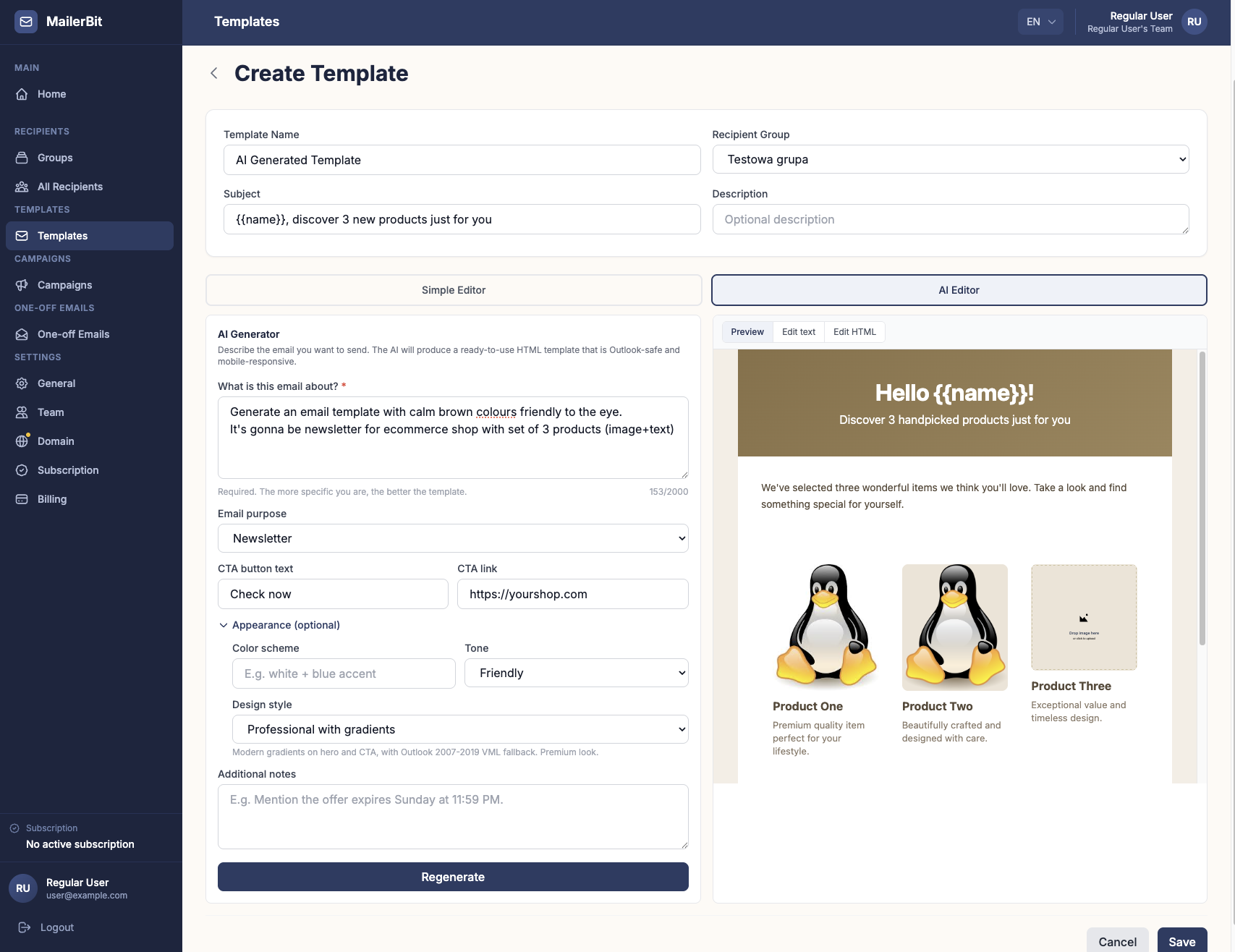
MailerBit sends payment reminders, client statements and other recurring emails where each recipient gets their own data — messages that can't afford to land in spam. That's why you verify your own domain before sending a campaign.
- Domain settings show the exact records to add — a DKIM TXT record and a Return-Path CNAME — with host, value and copy buttons.
- “Check Verification” marks each record as Verified or Pending.
- Campaigns are DKIM-signed for your own domain, so the signature lines up with your From address for DMARC.
- Your own domain builds your own domain reputation, new domains get an automatic five-day warm-up, and accounts with bounce rates above 5% or complaint rates above 0.1% are paused automatically.
More on the deliverability features page.
Get DKIM right once
DKIM takes five minutes when the record goes in correctly, and weeks of guesswork when it doesn't. Run your selectors through the DKIM checker, fix what it flags, and if you want a platform that generates the records and signs every reminder and statement with your own domain, create your MailerBit account.