Mail Merge from Excel with Word and Outlook: How-To and Limits
Why Word and Outlook Are Still the First Thing People Try
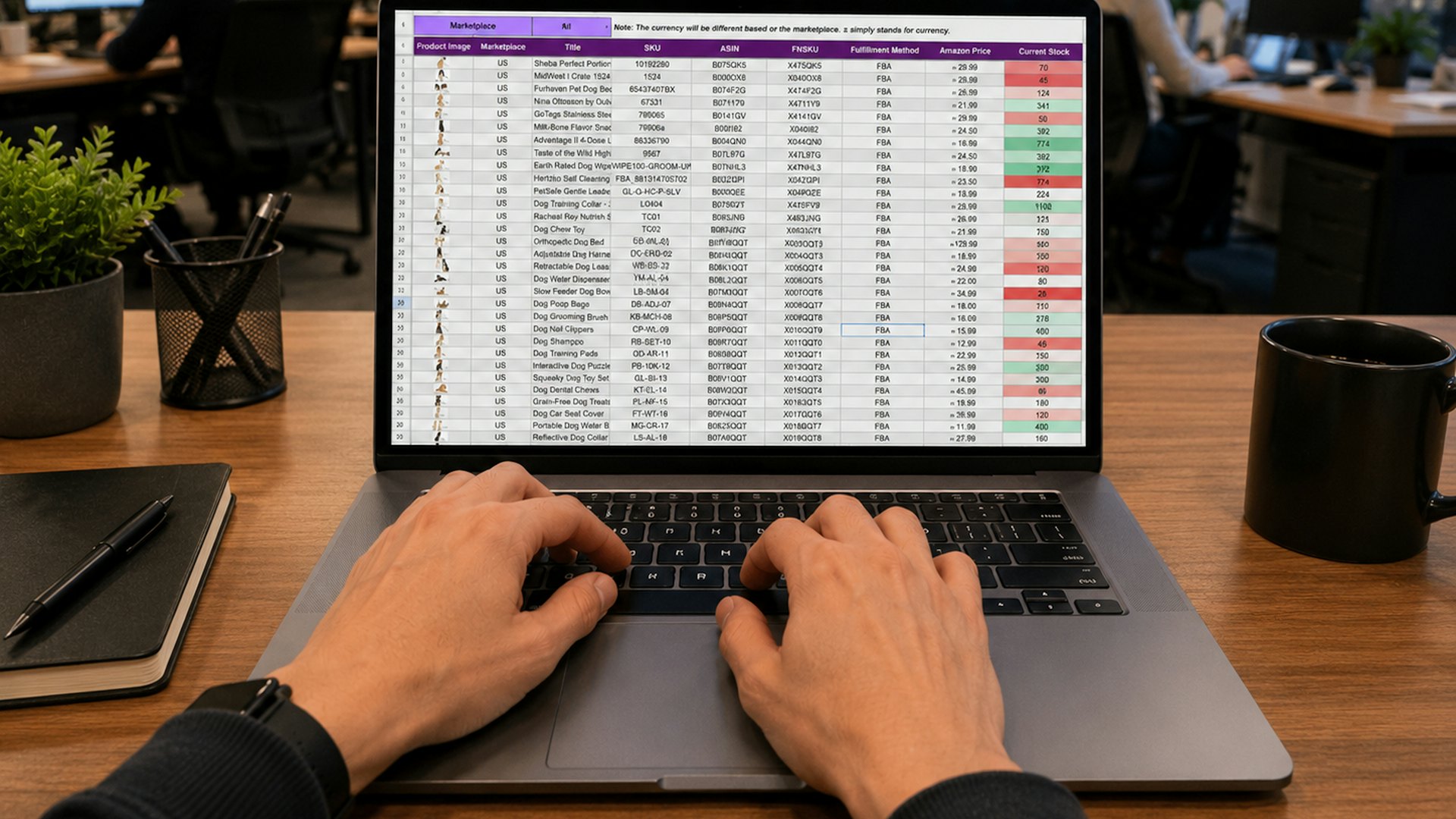
You have a client list in Excel. Each row has its own amount, due date or number of lessons, and you want every client to receive an email with their own figures. You already pay for Microsoft 365, Word has a Mailings tab and Outlook is open all day. Mail merge is the obvious first move, and for many small sends it does the job well.
Below: the steps from Excel to Outlook, the fix for amounts and dates that come out wrong, and a fair list of the limits, with a simple test for when mail merge is enough.
What You Need Before You Start
- Word for desktop on Windows or Mac. The browser version of Word doesn't offer mail merge to email.
- Classic Outlook set as your default email program. Word doesn't send anything itself; it hands each message to your default mail client, traditionally classic Outlook for Windows or Outlook for Mac. The new Outlook for Windows has had limited or no support for Word's email merge, so check your version: if the send option is greyed out or nothing appears in the Outbox, switch back to classic Outlook.
- An Excel file with your recipients, prepared as described below.
Step 1: Prepare the Excel Sheet
Most mail merge problems start in the spreadsheet, not in Word. Before you connect anything:
- Put one header row in row 1 and nothing above it: no title, no logo, no merged cells.
- Use short, unique column names without special characters, for example
Name,Email,Amount,DueDate,Invoice. Word turns them into field names. - One row per recipient. No blank rows in the middle, no subtotals or notes at the bottom.
- One email column with exactly one address per cell.
- Save and close the workbook before you connect from Word.
Name          | Email             | Amount  | DueDate    | Invoice
Anna Smith    | anna@example.com  | 1234.5  | 2026-12-10 | INV/11/2026/014
Tom Brown     | tom@example.com   | 380     | 2026-12-10 | INV/11/2026/015
Step 2: Start the Merge in Word
- Open a new, blank document.
- Go to Mailings → Start Mail Merge → E-mail Messages. The document switches to a web layout, which is roughly how the email will look.
- Click Select Recipients → Use an Existing List…, find your Excel file and choose the sheet with the list. Leave First row of data contains column headers ticked.
- Optional: Edit Recipient List lets you untick people or filter rows, for example only clients with an amount above zero.
Step 3: Write the Email and Insert Merge Fields
Write the text as you normally would. Wherever a client's own data should appear, place the cursor and choose Insert Merge Field → the column name. In the document, a field shows as «Amount».
Dear «Name»,
please find below the amount for invoice «Invoice»: «Amount», due on «DueDate».
Kind regards
Keep the layout simple: Word converts the document to HTML, and complex tables or floating images may look different in recipients' email apps.
Step 4: Preview Every Edge Case
Click Preview Results and use the arrows to move through the records. Don't stop at the first one. Check:
- The client with the longest name and the largest amount.
- A client with a zero or very small amount. Does the sentence still make sense?
- Every amount and date. This is where the most common problem shows up (see the next section).
- Rows with empty cells. Word simply prints nothing, which can leave sentences like "due on ." in the email.
Then send one test: in Edit Recipient List leave only a row with your own address.
Step 5: Finish & Merge and Send
- Click Finish & Merge → Send E-mail Messages…
- In To, choose the column that holds the email addresses.
- In Subject line, type the subject. It's the same for every recipient: you can't put merge fields here.
- In Mail format, choose HTML to keep your formatting. Plain text drops it, and Attachment sends the merged document as a Word file instead of an email body.
- Under Send records, choose All, or a From/To range if you want to send in batches.
Outlook sends the messages from your mailbox via the Outbox. Keep it open until the Outbox is empty.
A safety net worth using: before you click OK, switch Outlook to Work Offline (on the Send / Receive tab). The messages then wait in the Outbox, where you can open a few and check them. If something is wrong, delete them and fix the document. If everything looks right, go back online and Outlook sends the batch.
Fixing Amounts, Dates and Percentages
This is the problem almost everyone runs into. Excel shows 1,234.50, but the email says 1234.5. A date shown as 10 December 2026 arrives as 12/10/2026, and 15% becomes 0.15. Word reads the value stored in the cell, not the formatting you see in Excel. There are two reliable fixes.
Fix 1: a text column in Excel
Add helper columns that turn the value into text exactly as it should appear, and merge those instead of the originals:
=TEXT(C2,"#,##0.00")gives1,234.50=TEXT(D2,"d mmmm yyyy")gives10 December 2026=TEXT(E2,"0%")gives15%
Format codes and the argument separator depend on your Excel language (many European versions use a semicolon). Simply changing the cell format to Text doesn't convert numbers already in the cell; the formula does.
Fix 2: field switches in Word
Right-click a merge field and choose Toggle Field Codes (or press Alt+F9 on Windows). The field changes to something like { MERGEFIELD Amount }. Add a format switch inside the braces, toggle back and preview again:
{ MERGEFIELD Amount \# "#,##0.00" }for an amount with a thousands separator and two decimals,{ MERGEFIELD Amount \# "0.00" }for two decimals without a separator,{ MERGEFIELD DueDate \@ "d MMMM yyyy" }for a written-out date.
Edit inside the existing braces only. Typed curly brackets aren't treated as a field. The separators in a number switch follow your system's regional settings, so test with real data.
The Limits: What Mail Merge Doesn't Do
Mail merge is a word-processing feature that happens to send email. That explains most of its limits.
No per-recipient attachments
The built-in merge sends a message body. It can't attach each client's own invoice PDF or statement. The Attachment format attaches the merged Word document itself, not a file of your choice. Macros and third-party add-ins can fill the gap, but then you're maintaining extra software.
No CC or BCC, one subject for everyone
Each message goes to the single address in the column you picked. You can't copy a second parent, an accountant or your own archive address on each message, and the subject line can't include merge fields. Messages usually go out from the default account of your Outlook profile, so check which one that is if you have several.
Your own mailbox and its sending limits
Every message counts toward your mailbox's limits. For Microsoft 365 / Exchange Online these are about 10,000 recipients per day and 30 messages per minute, while consumer Outlook.com accounts have lower limits. Check the current limits for your plan. Go over them and your mailbox can be temporarily blocked from sending, which also means you can't reply to clients. A sudden burst of near-identical messages from a normal mailbox can also draw extra attention from spam filters.
No record of who received, opened or paid
Sent Items holds copies, and bounce notices arrive as separate emails you have to match by hand. There's no list of who opened the message and no link to payments. If you want to know who has paid, that's another column you tick in Excel.
You start from scratch every month
Update the sheet, open the document, confirm the prompt about running an SQL command to reconnect the data, preview, send. There's no schedule. If you're on holiday on the 20th, the notices go out late.
One mistake goes to everyone
Once Outlook sends, there's no undo. A wrong column, an outdated sheet or a typo in the text reaches the whole list at once. The Work Offline trick helps, but only if you remember it every time.
When Word and Outlook Are Enough
- You send occasionally, a few times a year, for example a note about next year's fees with each family's amount.
- The list is small: dozens of people, not hundreds.
- You don't need attachments or CC.
- You don't need to know who opened the email or who has paid.
- One person on one computer with the right setup handles it.
In that case, mail merge is free, familiar and good enough.
When a Dedicated Tool Makes More Sense
- The same email goes out every month, only the numbers change.
- Each client needs their own PDF: an invoice, a statement, a report.
- You need to know which emails were delivered and opened, and who has paid.
- The list runs into hundreds and you're getting close to mailbox limits.
- More than one person handles the sending, or it should happen when nobody is at the desk.
How the Same Job Looks in MailerBit
MailerBit isn't a newsletter tool. It sends your own clients their invoices, payment reminders and statements, each with their own data, on a schedule, and tracks who has paid. Here's how the mail merge workflow maps onto it:
- Your Excel list, imported as CSV. Save the sheet as a UTF-8 CSV and import it. Columns become custom fields with a type: text, whole number, decimal, date or file. Rows are checked against the field types on import, so a typo in an amount shows up before anything is sent.
- Merge tags in the subject and the body, with one arithmetic operation and filters, for example
{{net_amount * 1.23 | round(2)}}. Custom field values print as stored (a date as2026-12-10), so if you want "10 December 2026" keep that version in a text field. Payment tags such as{{payment_amount_due}}and{{payment_due_date}}are formatted for your country. - A file for each recipient. A File field holds each client's own document, such as an invoice PDF, uploaded for that client in the panel and sent as an attachment: up to 10 MB on Micro, 25 MB on Growth and Scale.
- A recurring schedule on any day of the month, weekly or daily, reading current data on every run (Growth and Scale plans).
- Your own verified domain with DKIM and a custom Return-Path, not your personal mailbox, plus automatic warm-up.
- Delivery and payment status. Each client's timeline shows delivered, opened or bounced; payments are linked to emails, and optional reminders stop once a payment is marked as paid.
For planning fields and preparing the CSV, see Custom Fields in Email: One Template, Hundreds of Emails.
If your mail merge has become a monthly routine, walk through the interactive demo (no account needed) or start a 7-day free trial with no card. Import the Excel list you already have and preview the first email with real data.